
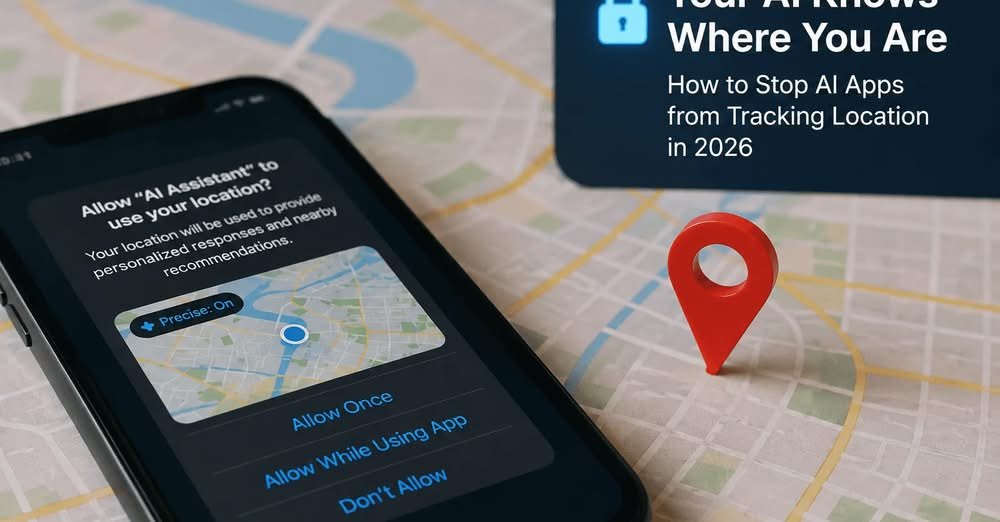

Picture this: You’re having a casual conversation with Claude about weekend plans. You mention wanting to try that new ramen place downtown. Two days later, you open ChatGPT and it suggests nearby restaurants. Coincidence? Or is your AI assistant quietly tracking your every move?
Here’s the unsettling reality AI apps know far more about your location than they let on. A forensic study of ChatGPT, Gemini, and Copilot mobile apps found that location data remained accessible within a half-mile radius even when location settings were turned off on iOS devices. In other words, flipping that master “Location Services” switch doesn’t actually stop AI apps from tracking your location.
So how do you actually stop AI apps from tracking location without abandoning the tools that make your life easier? Let’s dive into what’s really happening behind the scenes and exactly what you need to do about it.
How AI Apps Are Tracking You
The IP Address Loophole
Most AI apps don’t rely solely on your phone’s GPS. Even with location services disabled, your IP address reveals your approximate location typically your city or region. Claude, for instance, uses your IP address to determine your general location by default. Turn off GPS? They still know roughly where you are.
The Photo Problem
Here’s something most people don’t realize: Vision-Language Models (VLMs) can now determine where a photo was taken simply by analyzing visual cues architectural styles, vegetation patterns, even street signs. Privacy International warns that “widely accessible AI tools can identify the location of personal photos, even when GPS metadata has been removed”.
Upload a photo of your lunch to an AI app? The AI might figure out which city you’re in, just from the background.
The Permission Overreach
Many AI apps request permissions they don’t genuinely need. A study of LLM mobile apps revealed that these applications “access various types of personal data (e.g., account information, location, and device information), including browser cookies”. And once granted, those permissions often stay active indefinitely.
According to Surfshark analysis, 70% of leading AI chatbot apps track users’ location data. The default settings almost never favor your privacy.
Why This Matters: The Real Risks
Anonymization Is a Myth
Privacy experts are now warning that anonymization no longer guarantees durable privacy protection in an AI-driven ecosystem. Your supposedly “anonymous” location data can be re identified as AI capabilities advance. What feels harmless today could become deeply compromising tomorrow.
The Surveillance State
The risks extend beyond targeted ads. AI-powered geolocation capabilities create serious risks including “covert surveillance, doxxing, discriminatory policing, and profiling”. Texas state police recently contracted an AI surveillance tool called Tangles that “enables police to track cell phones without a court order”. The data feeding these systems often comes from the same apps you use daily.
Your Conversations Aren’t Private
When you ask an AI about a health symptom, financial decision, or personal relationship, that data may be stored indefinitely. By default, most AI platforms use your conversations to train future models. Some retain this data indefinitely, and several allow human reviewers to read your conversations.
How to Stop AI Apps from Tracking Location: A Step by Step Guide
visit source linkOn iPhone:
- Go to Settings > Privacy & Security > Location Services
- Set each AI app to “Never” or “While Using the App” (never “Always”)
- Go to Settings > Privacy & Security > Tracking and turn off “Allow Apps to Request to Track”
- Go to Settings > Privacy & Security > System Services > Significant Locations and clear history, then toggle it off
On Android:
- Open Settings > Location and set each AI app to “Not allowed” or “Allowed only while in use”
- Go to Settings > Location > Wi-Fi and Bluetooth scanning and disable both Android scans for networks even when both are off
- Go to Settings > Google > Manage your Google Account > Data and Privacy > Location History and pause it
Fix Each AI App Individually
Claude:
- Open the Claude app > tap your profile icon > Settings > Privacy
- Toggle off Location metadata
- Toggle off Help improve Claude (this prevents your conversations from being used for training)
- On Android: Settings > Apps > Claude > Permissions > Location > “Don’t allow”
ChatGPT:
- Open ChatGPT > tap your profile icon > Settings > Data Controls
- Toggle off “Improve the model for everyone”
- Go to Data Controls > Location Services and ensure it’s disabled
- Consider using Temporary Chat for sensitive conversations these aren’t saved to history
Gemini:
- Go to myactivity.google.com > Web & App Activity > turn it off
- Open Gemini > Settings > Gemini Apps Activity > toggle it off
- Visit gemini.google.com > Settings > Activity > set to Off
Copilot:
- Open Copilot > tap your profile picture > Account > Privacy
- Review your data training settings and opt out
Meta AI:
- Conversations on Facebook, Instagram, WhatsApp, and Messenger fall under Meta’s broad data policies
- Your AI conversations can be combined with social media activity and ad interactions
- Adjust your ad preferences and data sharing settings in each app’s privacy menu
One Critical Setting Most People Miss
Many people turn off Location History and think they’re done. You also need to pause Web & App Activity, which logs location tagged searches and app usage. Go to myaccount.google.com > Data and Privacy > Web and App Activity and pause it from there.
Beyond the Settings: Long-Term Protection
Use a VPN
A VPN masks your IP address, making it harder for AI apps to determine your location through your network connection. This doesn’t stop all tracking, but it limits how easily different services can link sessions together.
Audit Permissions Regularly
Default privacy settings rarely favor you. Make it a quarterly habit to review app permissions settings granted months ago may no longer be necessary. App updates can also reset your preferences.
Be Selective About What You Share
The safest approach is to share only the information an AI tool genuinely needs to complete a task. If in doubt, remove personal details or upload a redacted version of a document instead. Never enter sensitive, confidential, or personal information into AI tools.
Enable “Do Not Track”
Both iOS and Android offer “Do Not Track” settings that add another layer of privacy protection. While not foolproof, every layer helps.
What to Do If Your Data Is Already Out There
Delete Your History
Most platforms let you delete your conversation history:
- ChatGPT: Settings > Data Controls > Delete all chats
- Claude: Ask “Forget everything you know about me” in a new chat
- Gemini: myactivity.google.com > delete activity by time range
Export First, Then Delete
Before deleting everything, consider exporting your data first. ChatGPT offers an “Export data” option under Data Controls. This gives you a record of what was collected before you wipe it.
The Bottom Line
Stopping AI apps from tracking your location isn’t a one and done task it’s an ongoing practice. Most AI platforms collect your data by default, and you have to actively opt out. But the good news is that you have more control than you think.
It takes about 15 minutes to adjust these settings across the major platforms. Fifteen minutes to take back your privacy. Fifteen minutes to stop AI apps from tracking your location.
The question isn’t whether you can protect your privacy it’s whether you’ll take the time to do it.
What’s your experience with AI app privacy settings? Have you found any settings I missed? Share your thoughts in the comments below I read every one.
Want more privacy tips delivered straight to your inbox? Subscribe to my newsletter for weekly tech privacy guides.
Written by by The Everyday Scroll | AI & Security Expert | 4+ years in fintech & tech. Not financial advice always consult a qualified advisor.